
How to Install Linux on a Smart TV Box?
How to Install Linux on a Smart TV Box: A Practical Engineering Guide
A Smart TV Box built around an ARM SoC can provide a low-cost platform for Linux-based media playback, digital signage, network services, and embedded applications. The challenge is that a Linux-compatible processor does not automatically make the complete device Linux-compatible. Bootloader restrictions, undocumented board revisions, missing peripheral drivers, and vendor-specific firmware can prevent a standard Linux image from booting or operating correctly.
For engineers, the first task is to identify the exact hardware platform and its supported boot chain. For procurement managers and system integrators, the larger question is whether the device can support a maintainable Linux software stack throughout its production lifecycle.
Installing Linux on a Smart TV Box is feasible when the SoC, bootloader, kernel, device tree, and required drivers are compatible. The procedure varies by chipset and board design, so a generic image should never be treated as universally compatible.
1. Check Smart TV Box Compatibility Before Installing Linux
Before downloading an operating system, establish which hardware you have and whether a suitable Linux build exists.
Identify the SoC and board revision
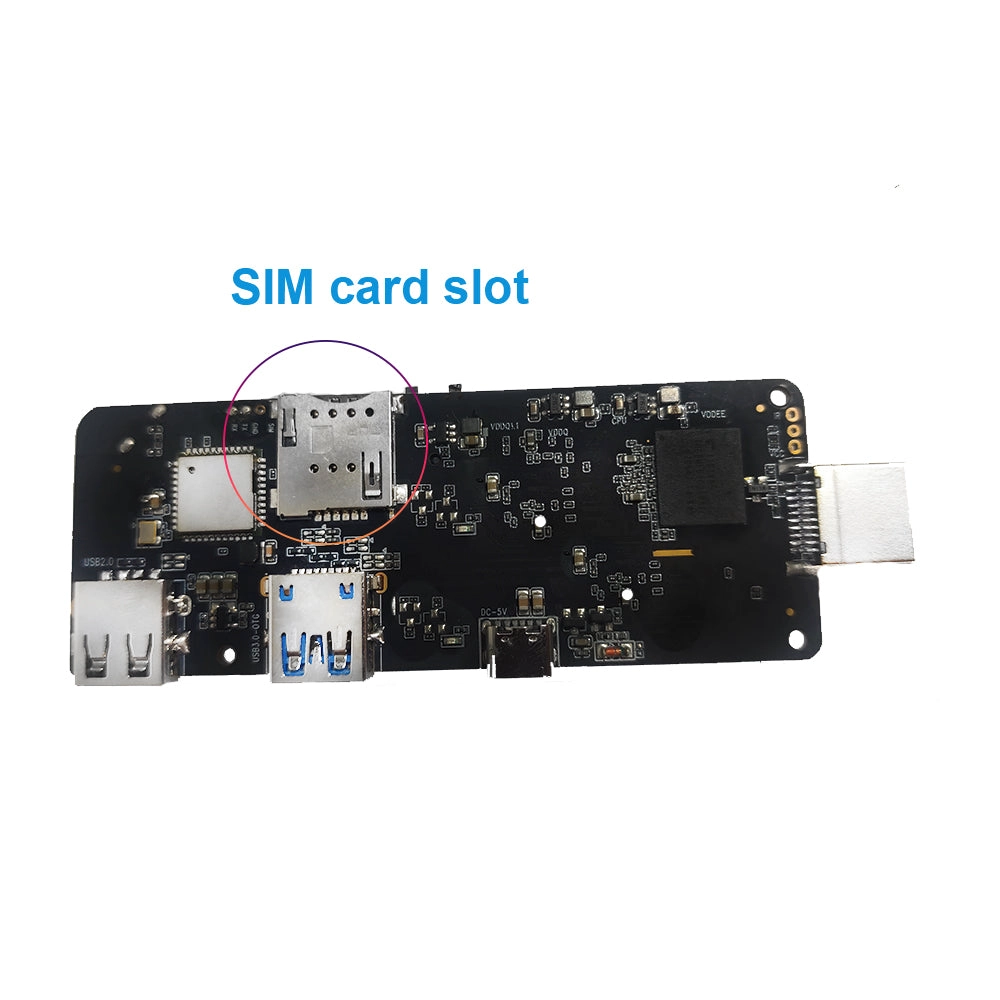
Start by recording the processor model, board revision, RAM, flash storage, wireless module, Ethernet controller, and available interfaces.
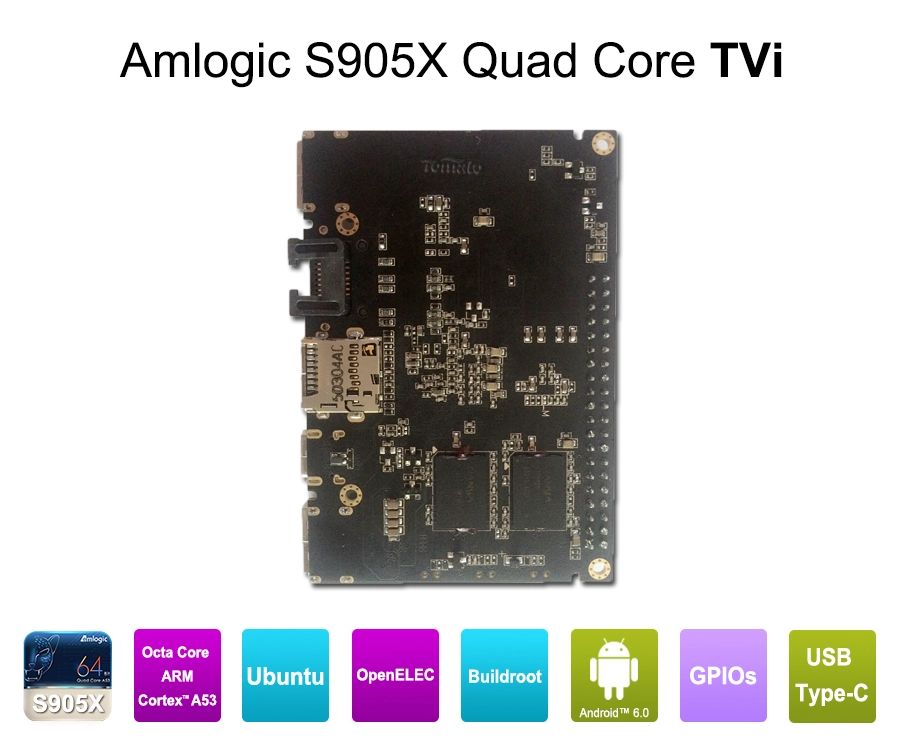
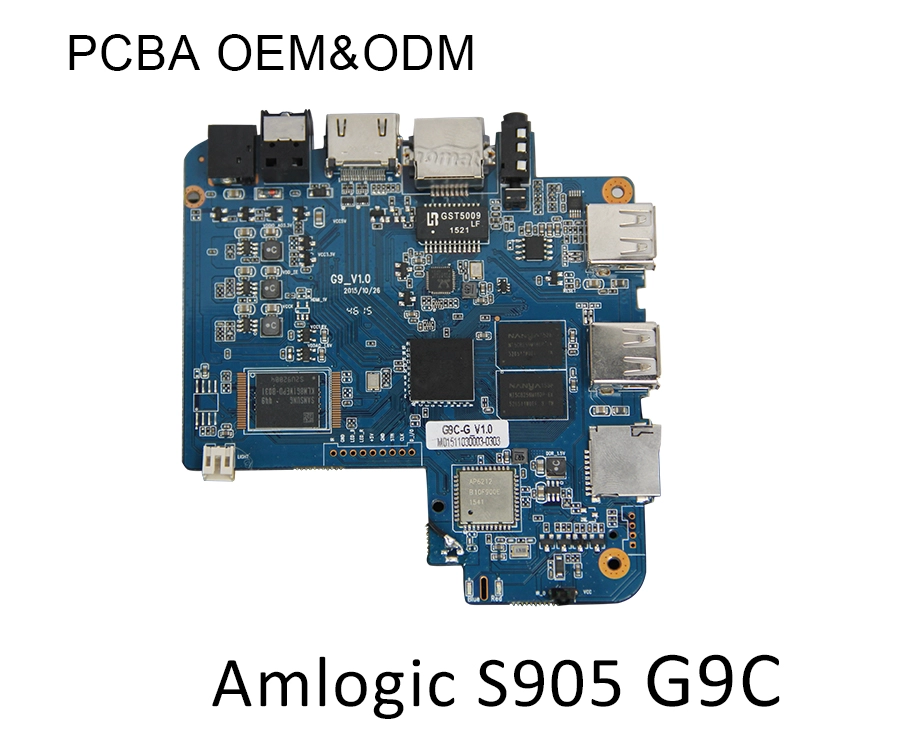
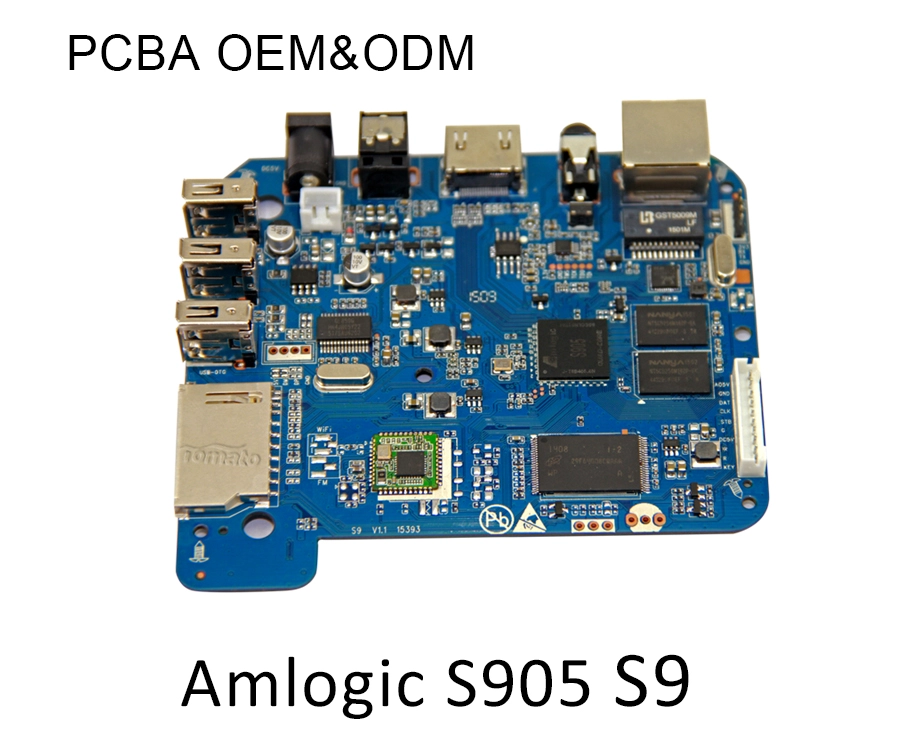
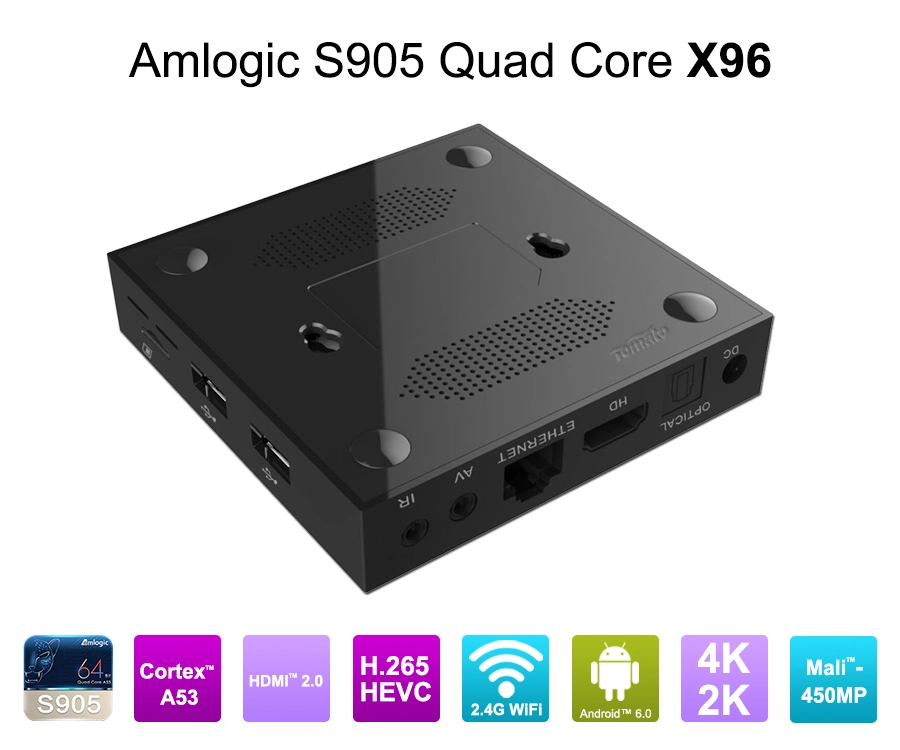
Common ARM-based TV Box platforms include processors from Amlogic, Rockchip, and Allwinner. Linux support varies by SoC generation and board implementation. Two boxes with similar external enclosures may use different processors, memory configurations, Wi-Fi modules, or bootloader settings.
If the box currently runs Android and provides terminal access, the following commands may help identify the platform:
uname -a
cat /proc/cpuinfo
cat /proc/device-tree/model 2>/dev/null
cat /proc/cmdline
lsblk
These commands provide information about the running kernel, CPU, device model, boot parameters, and storage devices. Access may be restricted on production firmware, and some details may require vendor documentation or serial-console access.
Do not assume that the retail model name identifies the exact PCB revision.
Determine whether the bootloader supports Linux
ARM TV Boxes commonly use U-Boot or a vendor-specific boot chain. The bootloader initializes the hardware, identifies the boot source, loads the kernel, and passes configuration information to Linux.
Depending on the platform, Linux may need to be loaded from microSD, USB storage, eMMC, or another supported source.
Before proceeding, establish:
-
Whether the bootloader permits external boot media.
-
Whether a compatible U-Boot build is available.
-
Whether the bootloader can load the intended kernel and device tree.
-
Whether secure boot or firmware-signing restrictions apply.
-
Whether a recovery mechanism exists if the system fails to boot.
A locked bootloader or vendor-specific secure boot implementation may prevent installation of an unsigned or custom operating system.
Verify kernel, device tree, and driver support
The Linux kernel must support the SoC and the peripherals installed on the board. A device tree describes hardware components and their configuration, including memory, buses, regulators, GPIOs, and connected peripherals.
A Linux image may boot successfully while still lacking Wi-Fi, Bluetooth, hardware video decoding, audio output, or remote-control support.
This distinction is important for media applications. Software-based video decoding may work for basic content but perform poorly at higher resolutions or frame rates if hardware acceleration is unavailable.
For this reason, select a Linux distribution and kernel build that explicitly support the exact board or a demonstrably compatible hardware revision.
2. How to Install Linux on a Compatible Smart TV Box
The safest approach is to test Linux from external storage before replacing the existing Android installation. Not every TV Box supports this method, so verify the board-specific instructions first.
Step 1: Back up the existing firmware
Before modifying the bootloader or internal storage, obtain the correct stock firmware and recovery instructions from the manufacturer or board supplier.
Where authorized tools and access are available, preserve the existing configuration and important data. Some devices require specialized flashing utilities, vendor-specific USB recovery modes, or signed images.
A generic firmware package for a different board can render the device unbootable.
Step 2: Download a compatible Linux image
Choose an image intended for the exact SoC and board whenever possible.
Depending on the hardware, available options may include Debian, Ubuntu, Armbian, or a vendor-maintained embedded Linux distribution. Availability and hardware support vary; the name of a distribution alone does not guarantee that a particular Smart TV Box is supported.
Verify the image's source and checksum before writing it to storage.
For a supported board, the installation image may contain a bootloader, kernel, device tree, root filesystem, and configuration files. These components must be compatible with the target hardware.
Step 3: Write the image to external storage
If the board supports external boot, write the image to a suitable microSD card or USB drive using the distribution's recommended imaging utility.
For example, on a Linux workstation, a block-writing tool may be used as follows:
lsblk
sudo dd if=linux-image.img of=/dev/sdX bs=4M status=progress conv=fsync
sync
Important: Replace /dev/sdX with the verified target device, not a partition such as /dev/sdX1. Selecting the wrong device can erase your workstation's data. This command is appropriate only when the downloaded image is designed to be written directly to a block device.
Use the distribution's documented procedure if it requires a different image format or preparation process.
Step 4: Boot from the external device
Power down the Smart TV Box, insert the prepared storage, and follow the board-specific boot instructions.
Depending on the platform, boot selection may involve a recovery button, a boot configuration file, a supported U-Boot command, or a vendor-specific boot utility.
Do not apply button combinations or bootloader commands from another model without verifying compatibility.
If the device boots successfully, confirm that the kernel identifies the expected hardware and that the root filesystem mounts correctly.
Step 5: Validate essential functions
After the first successful boot, check the core system services:
uname -r
ip link
lsblk
dmesg | tail -n 80
These commands help inspect the running kernel, network interfaces, storage devices, and recent kernel messages.
Next, test Ethernet, Wi-Fi, Bluetooth, USB peripherals, HDMI output, audio, temperature monitoring, and remote-control input as applicable.
If the purpose is media playback, test hardware-accelerated decoding separately. A Linux desktop appearing on the television does not prove that the video pipeline is fully functional.
Step 6: Consider internal storage only after successful validation
Moving Linux to eMMC or another internal storage device is a separate engineering step.
It may require repartitioning, replacing the bootloader, modifying boot variables, changing the device tree, or using vendor-specific flashing software. The process can erase Android and the factory recovery environment.
Do not overwrite internal storage until the external Linux installation has passed the required tests and a verified recovery path is available.
3. Common Linux Installation Problems and How to Resolve Them
Most failures fall into a small number of categories: incompatible boot components, incomplete hardware support, or incorrect configuration.
| Symptom | Possible cause | Recommended investigation |
|---|---|---|
| No boot or black screen | Incorrect image, bootloader mismatch, unsupported display initialization | Verify board revision, boot method, and kernel compatibility |
| Kernel panic | Incorrect device tree, missing driver, incompatible root filesystem | Inspect kernel logs and confirm image requirements |
| No Wi-Fi | Missing driver, unsupported wireless chipset, absent firmware | Identify the wireless module and check kernel support |
| No HDMI audio | Missing codec driver, incorrect audio routing, incomplete device tree | Inspect ALSA devices, kernel logs, and board configuration |
| Poor video performance | Missing hardware acceleration or unsupported codec path | Verify the decoder driver and supported media pipeline |
| USB or Bluetooth failure | Peripheral driver or power-management issue | Check kernel logs, device enumeration, and driver support |
| Device overheats | Inadequate cooling, incorrect thermal configuration, sustained load | Monitor temperature and verify thermal management |
| System fails after flashing | Incorrect image or bootloader configuration | Use the documented recovery procedure and matching stock firmware |
Kernel and device tree issues
A common mistake is assuming that a kernel compiled for the same SoC will work on every board using that processor.
The device tree must reflect the actual PCB implementation. Incorrect regulator settings, memory configuration, GPIO definitions, or peripheral assignments can cause boot failures or unstable operation.
For production projects, kernel and device tree changes should be tracked alongside the hardware revision. This makes later debugging and maintenance more predictable.
Hardware acceleration and multimedia support
Linux can run on a TV Box without providing the multimedia functionality required for a professional media player.
Hardware video decoding may depend on specific kernel drivers, userspace libraries, firmware components, and media frameworks. Support for AV1 or H.265 decoding should be confirmed for the exact SoC, driver stack, and software configuration.
Protected commercial streaming services introduce additional requirements. HDCP, DRM, application certification, and proprietary playback components may not be available in a generic Linux distribution.
A Linux installation suitable for digital signage or local media playback is therefore not automatically suitable for a certified OTT streaming product.
Thermal and power management
A TV Box designed for Android may rely on vendor-specific thermal management, CPU frequency scaling, suspend behavior, and power-management settings.
If these components are missing or incorrectly configured under Linux, the system may run hotter, consume more power, or become unstable under sustained workloads.
Validate temperature behavior, processor frequency scaling, reboot recovery, and continuous operation before using the device in a commercial environment.
4. When Does a Linux-Based Smart TV Box Make Sense for OEM/ODM Projects?
Linux can be a good fit when the application needs a controlled embedded environment rather than a general-purpose consumer streaming interface.
Potential applications include digital signage, local media playback, lightweight network services, custom control interfaces, and embedded computing. The best platform depends on the required peripherals, multimedia performance, security model, and maintenance strategy.
Linux versus Android: choose by application requirements
| Requirement | Linux-based Smart TV Box | Android-based Smart TV Box |
|---|---|---|
| Custom embedded applications | Strong fit when the required drivers and software are supported | Suitable when the application fits the Android framework |
| System-level customization | Depends on source access, kernel support, and bootloader permissions | Depends on BSP access, firmware permissions, and vendor support |
| Consumer streaming applications | Compatibility varies; proprietary services may be unavailable | Often a better fit for Android applications, subject to certification |
| Digital signage | Suitable for controlled playback and embedded workflows | Suitable for application-driven signage and customized interfaces |
| Hardware video acceleration | Depends on kernel drivers and userspace multimedia stack | Depends on vendor multimedia libraries and framework support |
| Long-term maintenance | Requires a defined kernel, security, and package-maintenance strategy | Requires a defined Android firmware and security-update strategy |
Linux is not inherently more reliable than Android. Reliability depends on the quality of the implementation, the maintenance model, and how closely the platform matches the application.
What B2B buyers should require from a supplier
For OEM/ODM deployments, the most important question is whether the supplier can deliver a repeatable platform with a defined software lifecycle.
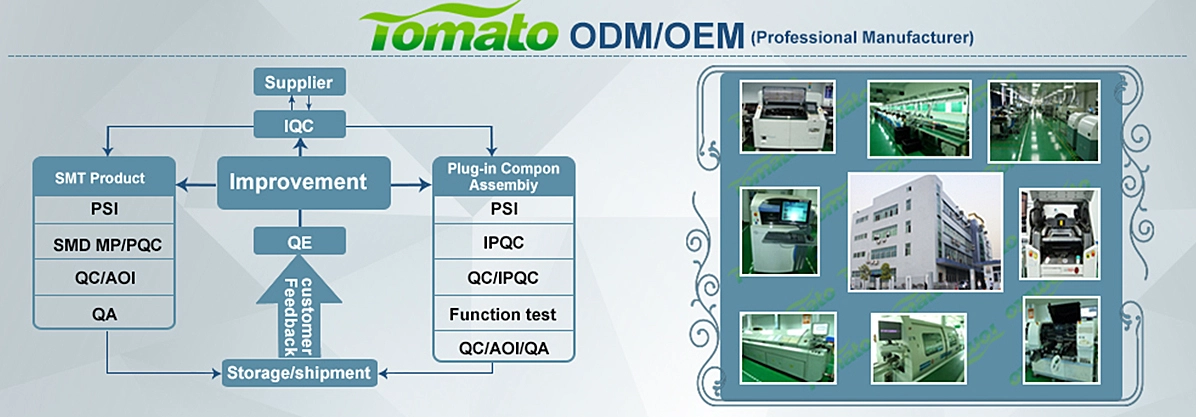
SZTomato supports OEM/ODM-oriented engineering for suitable hardware platforms, including PCBA hardware modification, custom UI/UX firmware, SDK/API integration, and specialized cooling solutions for industrial applications.
For a Linux project, the exact scope must be established during technical evaluation. Buyers should confirm:
-
Whether the selected SoC and PCB have a maintained Linux build.
-
Whether kernel source code, device tree files, and required drivers are available.
-
Whether hardware video acceleration is supported for the intended codecs.
-
Whether the bootloader permits the required deployment method.
-
Whether peripheral interfaces and thermal management can be validated.
-
Whether security updates, OTA mechanisms, and recovery procedures can be maintained.
-
Whether the supplier can reproduce the approved hardware and firmware configuration during mass production.
PCBA modifications may require corresponding device tree, driver, or kernel changes. SDK/API integration may also require application-level adaptation or middleware development. These tasks should be scoped separately rather than treated as automatic features of a standard TV Box.
Plan the firmware lifecycle before mass production
A working prototype is only the beginning of a production-ready Linux platform.
A commercial deployment needs a process for kernel updates, security patches, software version control, device recovery, and regression testing. OTA updates may be appropriate, but the update mechanism must support the chosen boot architecture and include safeguards against interrupted installation.
Hardware changes must also be controlled. Replacing a wireless module, memory component, or SoC variant can affect driver compatibility and boot behavior.
For procurement managers and system integrators, these requirements belong in the original project specification. Addressing them before mass production is generally more efficient than retrofitting the software and hardware after deployment.
Conclusion: Select Linux-Compatible Smart TV Box Hardware Before Installation
Installing Linux on a Smart TV Box is possible when the board has a compatible bootloader, kernel, device tree, and driver stack. The most practical starting point is to identify the exact SoC and PCB revision, test a supported image from external storage, validate essential peripherals, and move to internal storage only after confirming recovery options.
For personal experimentation, a community-supported image may be sufficient. For digital signage, embedded multimedia, or commercial deployments, kernel maintenance, hardware acceleration, thermal design, and firmware recovery deserve equal attention.
SZTomato works with B2B customers evaluating Smart TV Box OEM/ODM solutions that require hardware adaptation, firmware customization, and system integration.
For procurement managers and system integrators, define the operating system, application workload, hardware interfaces, and maintenance requirements before committing to a platform. Provide the target SoC, board revision, required Linux distribution, multimedia specifications, interfaces, and expected order quantity to assess the feasibility of a production-ready solution.
