


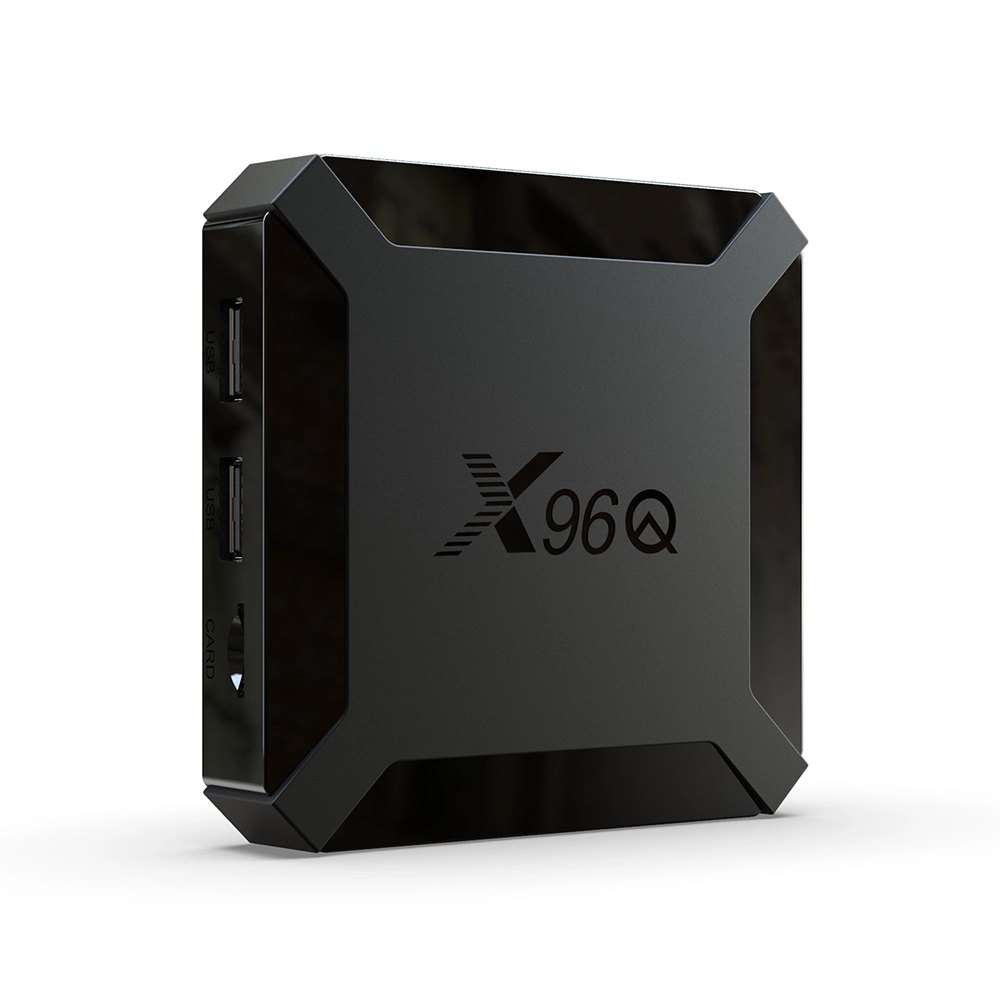
Can I install any apps on an Smart TV box?
Smart TV boxes, powered by Android or other operating systems, have become the go-to solution for users looking to enhance their television experience. The main question many consumers have is: Can I install any apps on a smart TV box?
Whether you use your smart TV box for streaming, gaming, or productivity, the ability to install apps is crucial for expanding the device’s capabilities. In this article, we’ll explore the process of installing apps on Android TV boxes, examine the flexibility of these devices, and provide some tips for getting the most out of your device.
Smart TV Boxes and App Compatibility
Smart TV boxes, such as those powered by Android, provide users with the freedom to install various applications. These apps allow you to stream movies, play games, browse the internet, and much more.
Android-based smart TV boxes come pre-installed with certain apps like YouTube, Netflix, and Hulu, but can you install other apps? The answer is yes—you can install almost any app, provided it’s compatible with the operating system.
Key App Stores for Smart TV Boxes
-
Google Play Store: The Google Play Store is the primary source for apps on Android TV boxes. It offers a wide range of applications, including games, streaming services, and utilities. Most Android TV boxes come with access to this store, so you can easily install popular apps like Netflix, Disney+, Amazon Prime Video, and YouTube.
-
Amazon Appstore: Some devices also support the Amazon Appstore, providing access to another set of apps, although the selection may differ slightly from the Google Play Store.
-
Aptoide TV: If you’re looking for apps that are not available on Google’s store, you can consider Aptoide TV, an alternative app marketplace with various third-party apps. However, it’s important to be cautious when installing apps from unknown sources, as they might not be vetted for security.
Installing Apps from the Google Play Store
The easiest way to install apps on a smart TV box is through the Google Play Store. Here’s a quick guide to installing apps:
-
Navigate to the Google Play Store: Open the Google Play Store app on your smart TV box.
-
Search for the app: Use the search function to find the app you want to install.
-
Click Install: Once you find the app, click on the "Install" button to begin the download.
-
Open the app: After installation, the app will appear in your app list. Click to open and start using it.
Most popular streaming services and entertainment apps are available through Google Play, so installing your favorite apps will be straightforward.
How to Sideload Apps on a Smart TV Box
If the app you want is not available on the official stores, you can still install it using a process called sideloading. Sideloading allows you to install apps from APK files (Android installation files) directly onto your smart TV box. However, this process requires a few extra steps:
How to Sideload Apps:
-
Enable Unknown Sources: Before sideloading apps, go to your settings and allow the installation of apps from unknown sources. This setting is usually found under Security or Developer Options.
-
Download the APK file: Using a browser on your smart TV box, download the APK file of the app you want to install.
-
Install the APK: Once the APK file is downloaded, navigate to the file in your File Manager app and select it to begin the installation process.
-
Launch the app: Once installed, you can access the app from your device’s home screen or app list.
Caution with Sideloading:
When sideloading, be careful to only download APKs from trusted sources. Some third-party apps can contain malware or pose security risks. Always research the source before proceeding with installation.
Best Apps for Android TV Boxes
While the ability to install any app is a huge benefit, it's important to know which apps work best with your smart TV box. Here are some of the most popular and useful apps for Android TV boxes:
-
Netflix: One of the most popular streaming services globally, Netflix offers a wide variety of movies, TV shows, and documentaries.
-
Spotify: For music lovers, Spotify provides access to millions of songs, playlists, and podcasts.
-
Kodi: An open-source media player, Kodi allows you to stream content, manage your media library, and install add-ons to enhance your viewing experience.
-
Plex: Plex helps you organize and stream your personal media collection, allowing you to access your content from anywhere.
-
Game Consoles: If you're into gaming, you can install apps like Steam Link, RetroArch, or even Emulators for playing classic games.
What About Third-Party Apps?
Yes, you can install third-party apps on your smart TV box as well, but you’ll need to be cautious. Some apps that aren’t available on the Google Play Store can still offer useful features, such as custom streaming platforms or unique utilities for Android TV boxes. Always download from trusted APK sources and ensure the app is compatible with your device.
If you're unsure whether a particular app is safe, check online reviews or forums where other users have tested the app. This can give you a better idea of its performance and safety.
Conclusion
In summary, you can indeed install any app on your smart TV box as long as it’s compatible with the device's operating system. The easiest way to install apps is through the Google Play Store, but if you need to access apps not listed there, sideloading APKs is a viable option. Whether you’re looking for streaming services, games, or productivity apps, your Android TV box offers great flexibility in terms of app installations.
For businesses seeking the best smart TV box for app compatibility, SZTomato offers a wide range of products with access to the Google Play Store, sideloading capabilities, and enhanced performance for all your multimedia needs.
