

Can an Smart TV Box connect to WiFi?
If you’re asking “can a Smart TV Box connect to WiFi?”, the short yet emphatic answer is yes — and understanding how, why and under what conditions makes all the difference. At SZTomato Technology Co., Ltd we specialise in Smart TV Box, Android TV Box, Google TV Box, Mini PC and Streaming Media Player solutions with WiFi capability — and customisation support for global B2B clients. Let’s walk through the essentials: what a Smart TV Box is, how WiFi connection works, what to watch out for, and why our customised approach gives you an edge.
What is a Smart TV Box and why WiFi matters
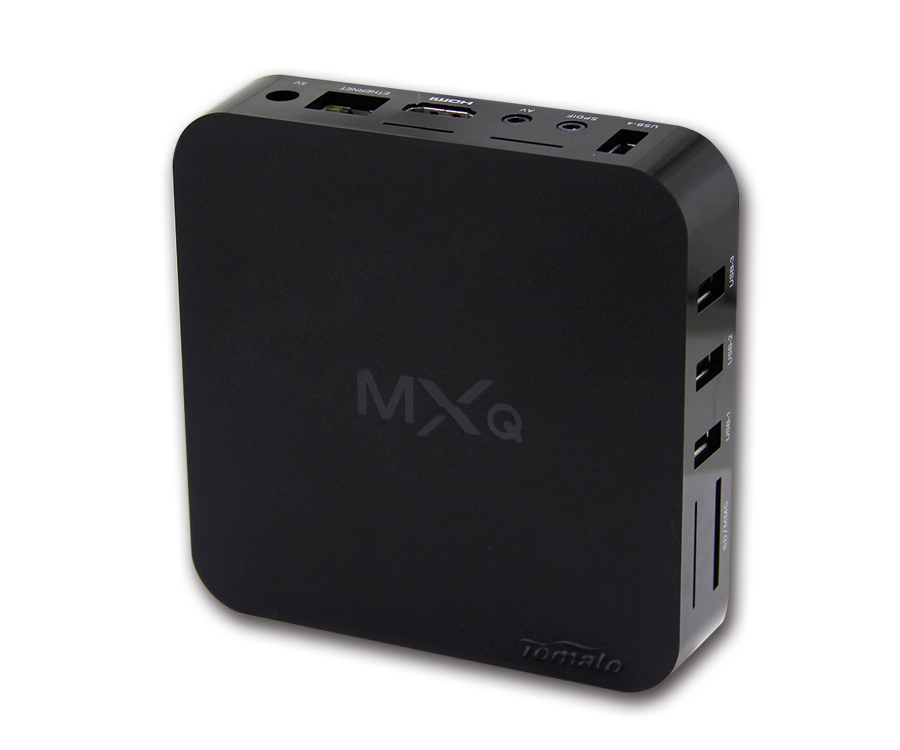
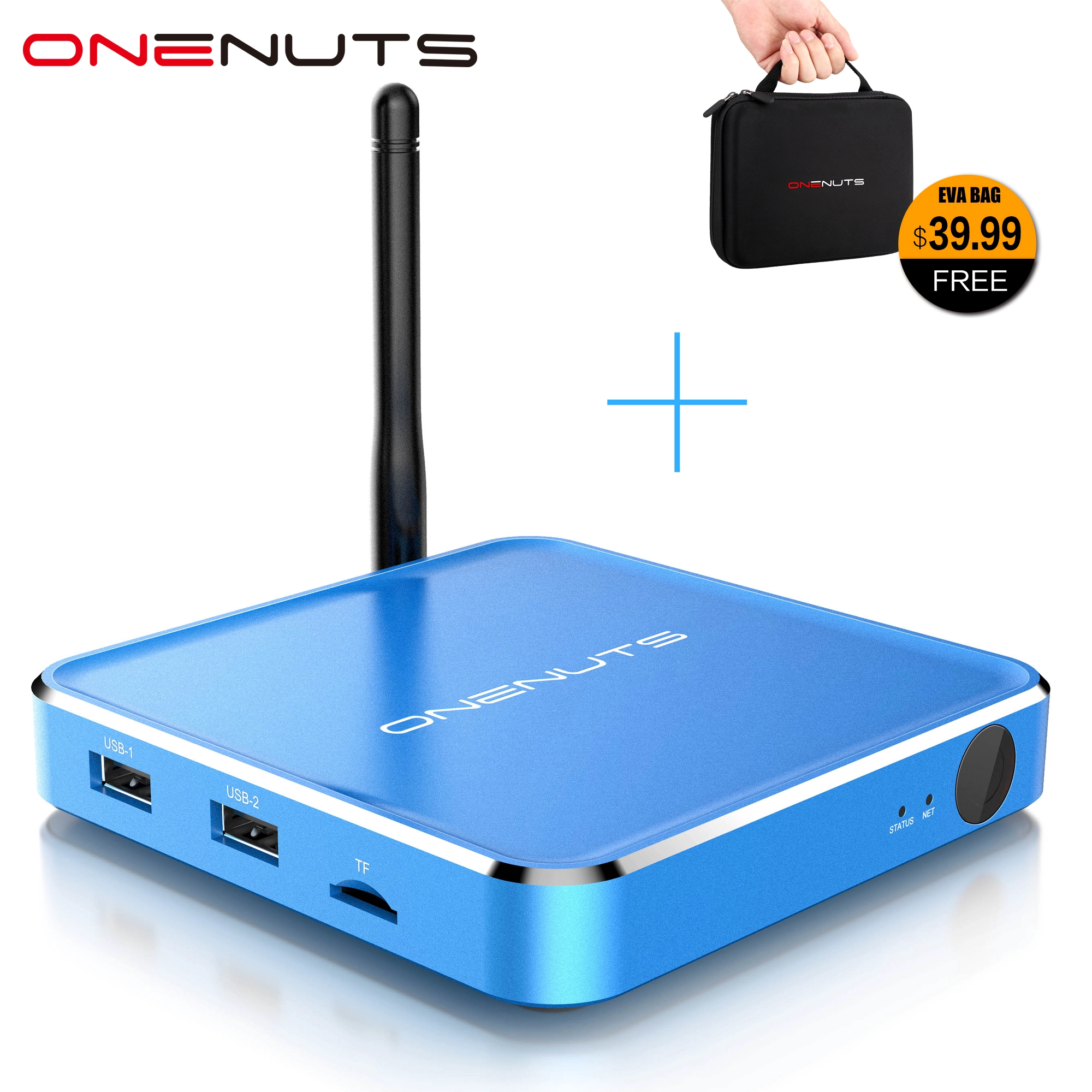
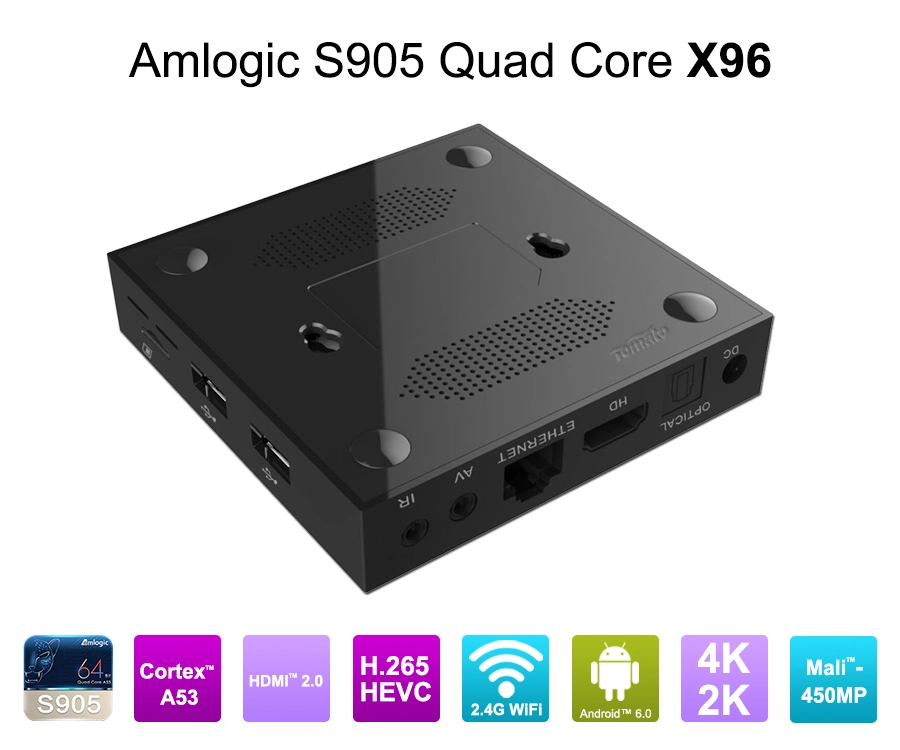
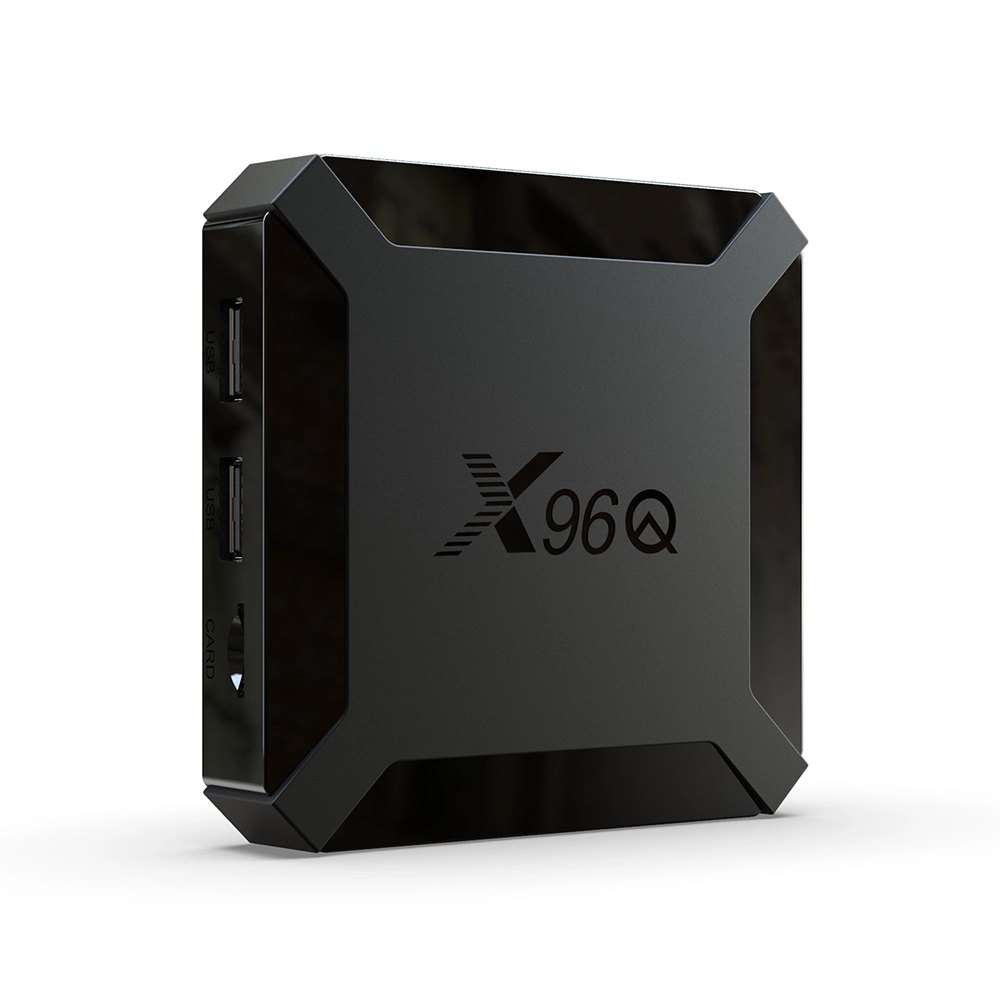
A Smart TV Box (also called Android TV Box, Internet TV Box, Set Top Box or Mini PC) is a small hardware device which connects to a television and enables apps, streaming services, internet-browsing, signage and more. From a connectivity standpoint, WiFi integration is crucial because it liberates the box (and your TV) from needing to be physically tethered by cables to a router or network device.
From a technical definition, many set-top boxes already incorporate wireless network adapters (802.11 g/n/ac/ax) or at least Ethernet ports, enabling networked content delivery. When a Smart TV Box supports WiFi, you gain immediate flexibility: placement away from the router, fewer cables, easier installation in living rooms or public signage installations.
How a Smart TV Box connects to WiFi
Below are the typical steps and pre-requisites to ensure a successful WiFi connection for the Smart TV Box:
Pre-connection checklist
Before you begin, make sure you have the following:
-
A WiFi router with an active wireless network (SSID) and password.
-
WiFi coverage of the area where you’ll install the Smart TV Box.
-
The Smart TV Box powered and connected (typically via HDMI) to the TV or display.
-
On some models, you may need to check that the WiFi module is enabled in system settings.
Connection procedure
-
On your television, switch to the Smart TV Box’s HDMI input.
-
Using the remote or input device, navigate to Settings → Network or Wireless & Internet.
According to one guide: “Once in the network settings, select the ‘Wi-Fi’ option. This will enable your Android TV box to scan for available wireless networks in your vicinity.” -
Select your WiFi network (SSID) from the list.
-
Enter the WiFi password.
-
Wait for the Smart TV Box to connect; once connected you should see status “Connected” and ideally test internet functionality (e.g., open a streaming app).
-
For best results, if the Smart TV Box is located at a distance far from the router or behind thick walls, consider WiFi extender/mesh network or use Ethernet port if available (for wired fallback). One general guidance says: “While wireless connections have improved a ton … Ethernet cords still provide a more reliable connection in most homes.”
Post-connection checks
-
Test streaming services (e.g., Netflix, YouTube) to verify stable connectivity.
-
If you experience lag or buffering, check actual download speed over the same network with other device. Streaming in HD typically requires at least 5 Mbps per device; more devices sharing the network will raise the requirement.
-
Ensure firmware of the Smart TV Box is updated — many performance or connectivity issues are remedied via firmware patches.
-
Secure your network: use WPA2 or WPA3 encryption, change default router password, and consider hiding SSID broadcast if installation is in public signage environment.
Why sometimes a Smart TV Box can’t connect to WiFi
While WiFi connection should be straightforward, in practice you may encounter issues or limitations:
-
Weak WiFi signal: If the box is too far from the router or obstructed by walls/floors, detection or connectivity may fail. Some users report that older Android TV Boxes struggle to pick up weak signals.
-
Incorrect credentials: The SSID or password may have been entered incorrectly, or the WiFi network is hidden.
-
Router configuration: Some routers might restrict access via MAC address filters, or assign only certain devices via static IPs.
-
Incompatible network bands: Some Smart TV Boxes only support 2.4 GHz WiFi and cannot “see” 5 GHz networks, or vice versa.
-
Firmware/hardware limitations: Very old boxes may have outdated WiFi modules or buggy software; in that case the recommendation is replacing the unit or using wired connection.
-
Network interference: In dense apartment buildings or business installations, WiFi may be congested—use of wired Ethernet or WiFi extenders may be required.
Why choosing SZTomato’s Smart TV Box solutions gives you an advantage
At SZTomato, we understand B2B independent website requirements for marketing, branding and product differentiation — and we align our hardware offering accordingly. Here are the key value-adds:
-
Customisation support: We offer private-label Smart TV Box and Android TV Box models that can be configured with client branding, software images, custom firmware and wireless network certification.
-
Future-proof WiFi modules: Our boxes support dual-band (2.4 GHz + 5 GHz) WiFi — enabling robust connectivity in both home and commercial signage deployments.
-
Enterprise readiness: For digital signage, hospitality or corporate environments, our boxes support secure WiFi provisioning, static IP configuration, remote management and logging.
-
Reliable support & supply chain: We manage component sourcing (WiFi chips, antennas), QA testing (including WiFi connectivity tests under weak signal) and logistics — meaning you can guarantee your clients that the Smart TV Box will connect to WiFi when installed.
Practical deployment scenarios and best practices
Home streaming environment
For home users: place the Smart TV Box within “line-of-sight” of the router if possible, avoid thick brick or concrete walls, ensure no major RF interference from other devices (microwaves, cordless phones). Choose the 5 GHz band for fewer interference issues and faster throughput when streaming 4K HDR content.
Commercial signage or hotel lobby deployment
In B2B contexts: run a site survey to assess WiFi coverage. If the Smart TV Box will be mounted behind a display or in a cabinet, ensure a dedicated router or access point covers it. For large deployments, consider enterprise-grade access points with VLAN segmentation, and preload the box configuration (SSID, password, static IP) during manufacturing.
Troubleshooting quick list
-
Check that WiFi is enabled on the box.
-
Reboot router and box.
-
Try connecting another device (smartphone) to that network to verify WiFi is functioning.
-
Move the box closer to the router to test signal strength.
-
As fallback, plug the Smart TV Box into Ethernet to verify network access — if wired works but WiFi doesn’t, the issue is WiFi-specific.
Final thoughts: yes, and make it seamless
In summary: Yes, a Smart TV Box can connect to WiFi — and when done correctly, it delivers a seamless streaming or signage experience. But it’s not just a tick-box: WiFi connectivity needs to be engineered, tested and supported. That’s where SZTomato comes in — our hardware and customisation services free you from worrying about “will it connect?” and help you instead focus on “what can I deliver?”. Whether you target end-consumer streaming, hospitality digital displays or corporate AV installations, choosing the right Smart TV Box — with reliable WiFi, firmware support and B2B-friendly options — matters.
If you’re ready to explore how our Smart TV Box, Android TV Box, Google TV Box or Mini PC streaming media player solutions can be tailored for your brand and network environment, feel free to contact us.
