
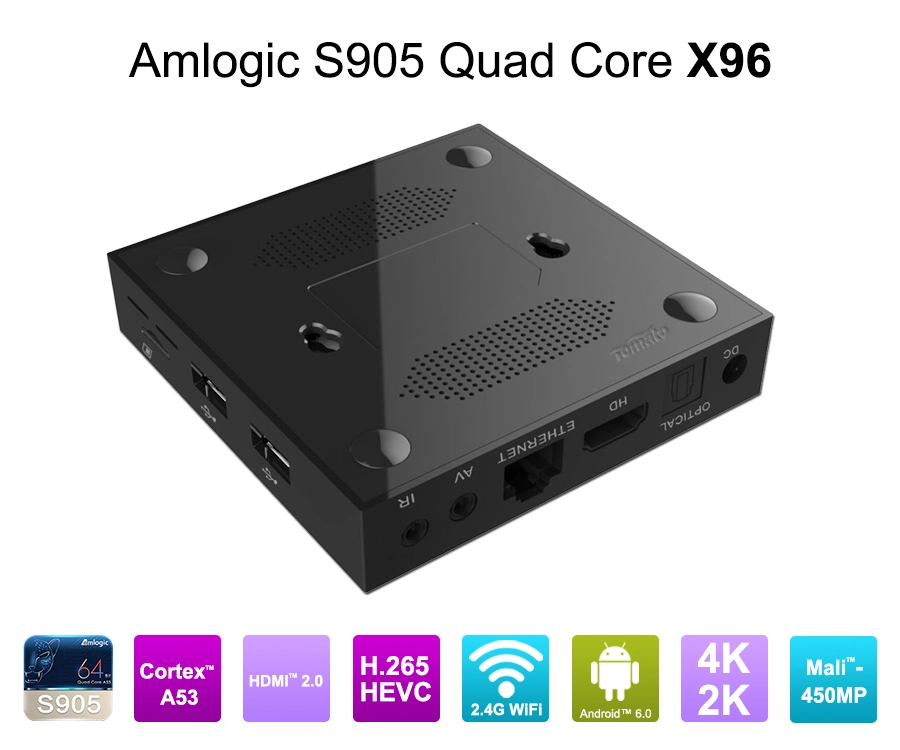
How do I set up my Internet TV Box?
How Do I Set Up My Internet TV Box for Reliable Streaming?
A modern Internet TV Box can support 4K video, AV1 decoding, Wi-Fi 6, Ethernet networking, IPTV applications, OTT services, and customized Android or Linux environments. But successful deployment depends on more than connecting an HDMI cable.
A reliable setup requires the correct network connection, display configuration, operating system, application environment, account authentication, and firmware version. For commercial deployments, additional factors such as HDCP, DRM, OTA updates, thermal management, and centralized device control become critical.
Whether you are configuring one Internet TV Box or deploying thousands of units, the basic principle is the same: establish the hardware connection first, configure the network second, validate the software environment third, and only then optimize applications and content delivery.
How to Set Up an Internet TV Box Step by Step
The standard installation process is straightforward, but each stage can expose different technical issues.
1. Connect the Internet TV Box to the TV
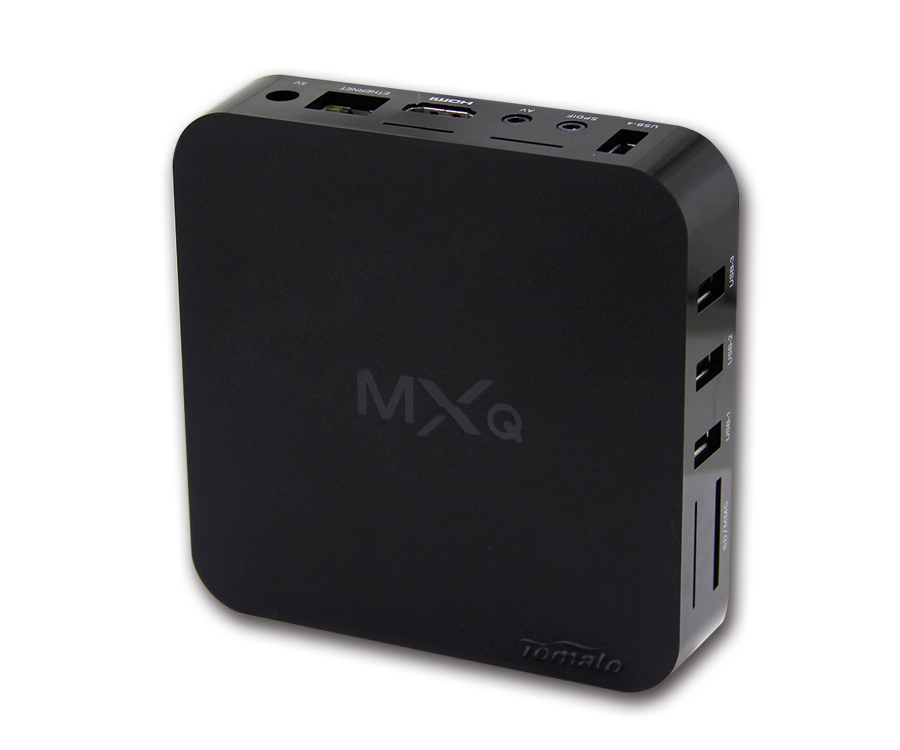
Connect the HDMI output of the Internet TV Box to an available HDMI input on the television.
Then connect:
-
Power adapter
-
Ethernet cable, if using wired networking
-
Wi-Fi during software configuration, if applicable
-
USB peripherals when required
-
External storage when supported
Select the corresponding HDMI input on the television.
If there is no picture, check the HDMI cable, input source, power supply, and output resolution. For commercial installations, also verify HDMI compatibility and HDCP requirements.
A box capable of 4K decoding does not automatically mean that every TV, HDMI cable, and display chain will operate at 4K.
2. Select the Correct Display Resolution
After the first boot, open the display settings.
Typical options include:
-
1920 × 1080
-
3840 × 2160
-
4K @ 60 Hz
-
HDR modes
-
Automatic resolution selection
For a 4K television, select an output mode supported by both the Internet TV Box and the display.
For B2B projects, the preferred approach is to validate the complete HDMI chain rather than simply specifying "4K" on the product datasheet.
The SoC, HDMI controller, firmware, display EDID handling, HDCP implementation, and panel compatibility can all influence the final result.
3. Connect the Internet
The Internet TV Box needs network access for streaming applications, firmware updates, authentication, and cloud services.
There are two common configurations.
Wi-Fi
Connect to the required 2.4 GHz or 5 GHz wireless network and enter the password.
Wi-Fi is convenient for home installations and locations where Ethernet cabling is difficult.
Ethernet
Connect the box directly to a network switch or router.
For fixed IPTV, hotel, commercial signage, and enterprise installations, Ethernet can provide a more predictable connection and easier network management.
For large deployments, network architecture should be evaluated before hardware procurement. VLANs, bandwidth allocation, multicast traffic, firewall rules, DNS, DHCP, and remote-management access may affect the final design.
How Do I Configure Apps and Streaming Services?
Once the Internet TV Box has network access, configure the required applications.
Depending on the platform, this may include:
-
IPTV applications
-
OTT streaming applications
-
Video-on-demand platforms
-
Media players
-
Digital signage applications
-
Cloud storage applications
-
Enterprise applications
-
Custom operator software
An Android-based Internet TV Box may use APK-based applications or applications integrated into the firmware image.
For operator projects, the application layer can be integrated into a customized launcher instead of requiring users to install applications manually.
IPTV Configuration
An IPTV application may require information such as:
-
M3U playlist
-
Portal URL
-
Xtream API credentials
-
EPG source
-
Middleware address
-
Device authentication
-
User credentials
The exact configuration depends on the IPTV platform.
System integrators should also distinguish between IPTV application compatibility and IPTV service authorization. Installing an application does not provide access to content that requires a valid subscription, authentication, DRM, or operator authorization.
OTT and DRM Considerations
Commercial streaming platforms may require specific DRM and certification environments.
An Internet TV Box may technically decode H.265 or AV1 video but still fail to provide access to a particular premium service if its DRM, certification, or secure media path does not meet the service requirements.
This is why B2B buyers should evaluate the entire software stack rather than selecting hardware based only on CPU performance.
What Should I Do If the Internet TV Box Has Buffering or Poor Video Quality?
Buffering is often treated as a hardware problem, but the root cause may be elsewhere.
Check the system in this order:
Network → Server/CDN → Application → Codec → SoC → Thermal performance → Display output
Network Problems
Check actual network throughput and latency rather than relying on the nominal router speed.
A box connected through a congested Wi-Fi network can experience buffering even when the Internet connection is rated at high speed.
For fixed commercial installations, Ethernet can simplify troubleshooting.
Codec and Hardware Decoding
Verify that the SoC provides hardware decoding for the required video format.
For example, an Internet TV Box intended for modern 4K content may require hardware acceleration for H.265/HEVC or AV1.
Software decoding can increase CPU utilization and power consumption and may result in dropped frames.
Thermal Throttling
Continuous playback can expose thermal problems that are invisible during short tests.
If the device operates at high load for extended periods, excessive temperature can trigger CPU frequency reduction or other protective mechanisms.
Commercial Internet TV Box designs may therefore require:
-
Optimized PCBA layout
-
Heat-spreader design
-
Thermal pads
-
Enclosure ventilation
-
Passive cooling
-
Active cooling where appropriate
For industrial deployments, customized cooling solutions should be considered during the hardware design stage rather than added after mass production.
How Should Businesses Deploy Internet TV Boxes at Scale?
A single Internet TV Box can usually be configured manually.
A deployment involving hundreds or thousands of devices requires a different architecture.
The typical structure is:
Cloud/CMS → Network → Device Management Platform → Internet TV Boxes → Displays
The objective is to minimize manual intervention.
Centralized Firmware Management
A commercial Internet TV Box should ideally support an OTA update system.
An operator can use OTA infrastructure to manage:
-
Firmware versions
-
Security patches
-
Application updates
-
Configuration files
-
Regional firmware
-
Device groups
-
Rollback procedures
This becomes particularly important when the devices are installed in hotels, retail stores, educational facilities, transportation systems, or other locations where physical access is expensive.
Device Provisioning
Large projects can also automate initial configuration.
Instead of manually entering Wi-Fi credentials, IPTV portals, application settings, and device parameters, the factory firmware can contain project-specific configuration.
The device can then register with the operator's platform after first boot.
This is one of the major differences between a consumer Internet TV Box and a professionally engineered B2B endpoint.
When Should an Internet TV Box Be Customized?
Standard hardware is suitable when the project uses standard applications and does not require specialized interfaces or software control.
OEM/ODM customization becomes useful when the project requires specific hardware, firmware, or integration functions.
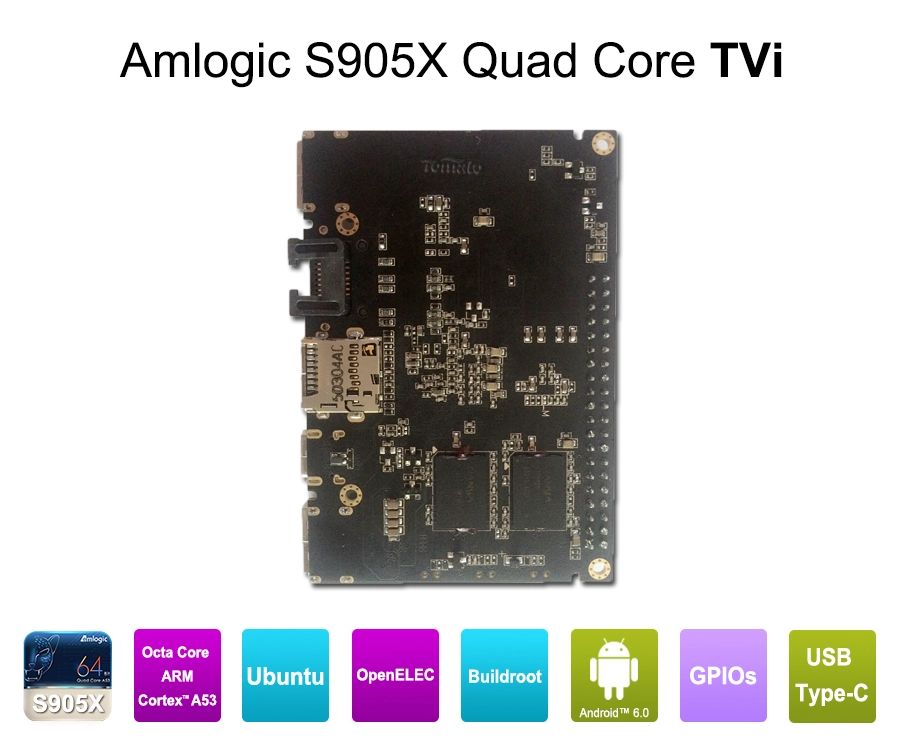
PCBA Hardware Modification
The PCBA can be adapted to project requirements such as:
-
RAM capacity
-
eMMC storage
-
Ethernet interface
-
Wi-Fi/Bluetooth module
-
USB configuration
-
Serial interfaces
-
GPIO
-
Power architecture
-
Additional peripherals
This allows the Internet TV Box to become part of a larger system rather than functioning as an isolated consumer product.
SDK/API Integration
An operator may already have a CMS, IPTV middleware, enterprise platform, advertising system, or device-management platform.
SDK/API integration allows the Internet TV Box to communicate with those systems.
The box can receive configuration commands, authenticate devices, report status, retrieve content, or trigger application functions according to the project's software architecture.
Custom UI/UX Firmware
The standard Android interface may not be suitable for a branded IPTV operator or commercial deployment.
Custom firmware can control:
-
Boot animation
-
Launcher
-
Home screen
-
Application layout
-
Remote-control functions
-
System settings
-
Application permissions
-
Automatic application startup
Linux/Android kernel optimization may also be required when the product uses specialized hardware or peripherals.
Internet TV Box Setup: Consumer vs B2B Deployment
The basic setup process is similar, but the engineering requirements differ significantly.
| Requirement | Consumer installation | B2B deployment |
|---|---|---|
| HDMI setup | Manual | Standardized |
| Network | Wi-Fi/Ethernet | Managed network |
| Apps | Manual installation | Pre-integrated |
| Firmware | User update | OTA management |
| UI | Standard launcher | Customized UI/UX |
| Device control | Local | Centralized |
| Hardware | Standard PCBA | Customized PCBA |
| Cooling | Consumer load | Continuous-load design |
| Security | Basic | DRM/HDCP and enterprise controls |
| Maintenance | Local support | Remote monitoring |
For B2B buyers, these differences should be included in the initial product specification.
A Practical Internet TV Box Setup Checklist
Before approving an Internet TV Box for deployment, verify:
-
HDMI output — Confirm the TV and required resolution.
-
Network connectivity — Test Wi-Fi or Ethernet under actual operating conditions.
-
SoC decoding — Confirm H.264, H.265/HEVC, VP9, or AV1 requirements.
-
DRM — Verify required streaming-service or operator requirements.
-
HDCP — Validate the complete protected HDMI chain.
-
Applications — Confirm IPTV, OTT, CMS, or proprietary software compatibility.
-
Firmware — Check Android/Linux version and customization requirements.
-
OTA — Confirm remote firmware and application update capability.
-
Thermal design — Test continuous playback under the expected ambient temperature.
-
Remote management — Verify provisioning, monitoring, diagnostics, and recovery.
This checklist is more reliable than judging an Internet TV Box by CPU core count, RAM, and advertised 4K support alone.
Choosing an Internet TV Box for a Long-Term Project
The setup process may take only a few minutes for a single device. The engineering decisions behind a commercial deployment can affect the project for several years.
For consumers, the priority is usually simple installation and application compatibility.
For IPTV operators, distributors, telecom companies, hotels, and system integrators, the priorities expand to hardware stability, firmware control, software integration, security, remote management, thermal performance, and lifecycle support.
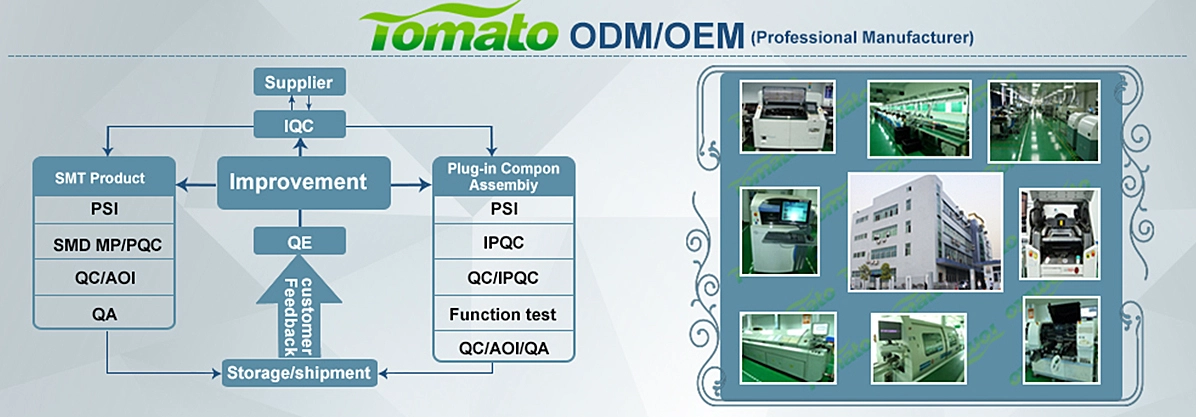
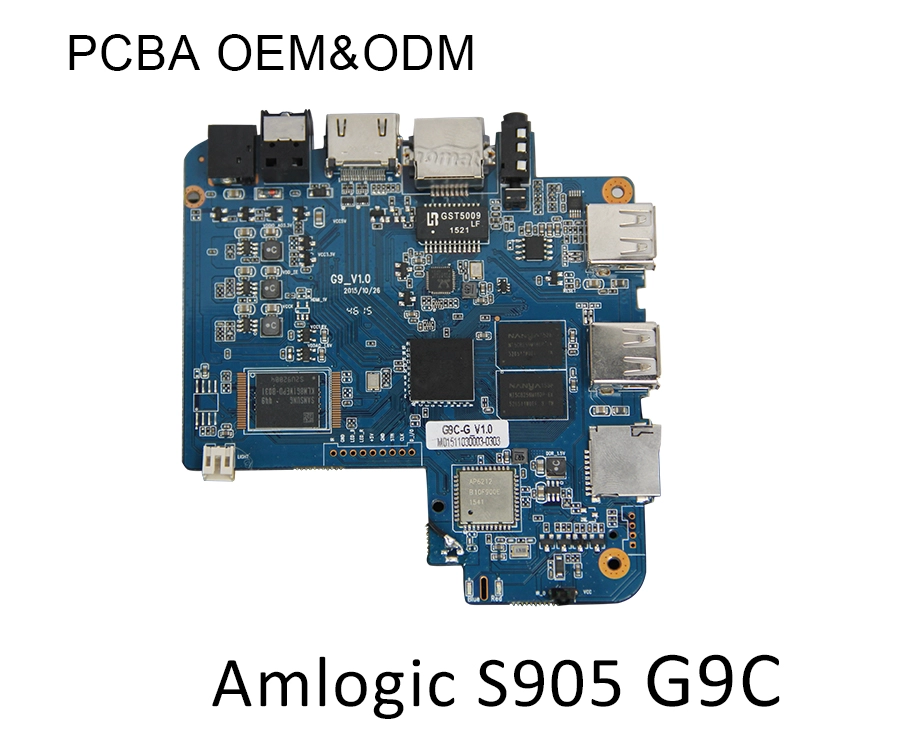
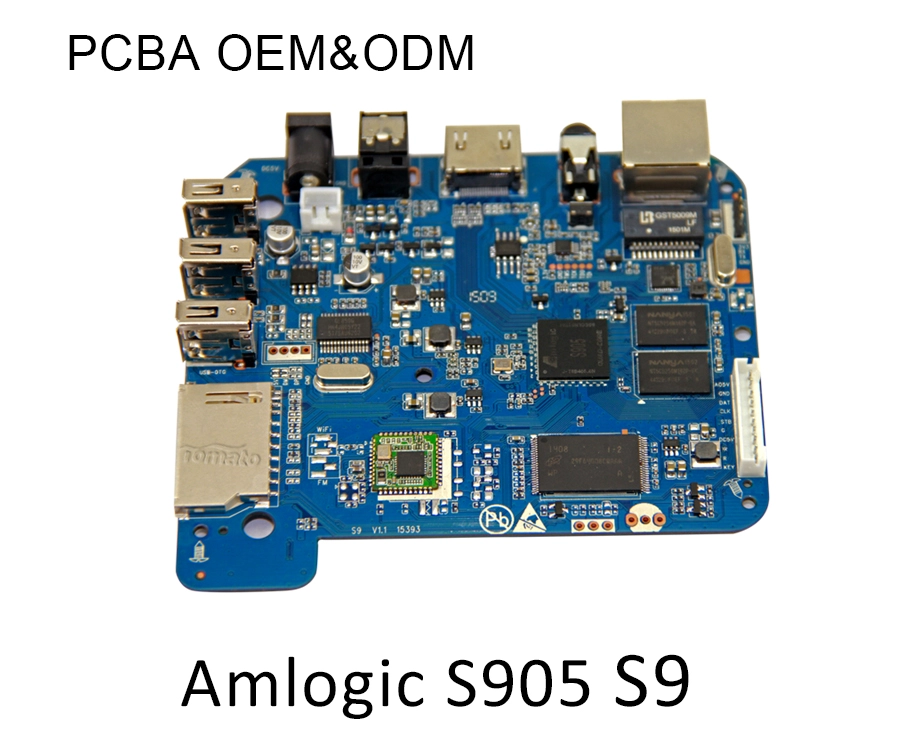
SZTomato supports Internet TV Box OEM/ODM development with PCBA hardware modification, SDK/API integration, custom UI/UX firmware, Android and Linux kernel optimization, OTA update systems, and specialized cooling solutions for continuous commercial operation.
For procurement managers and system integrators, the best starting point is not a generic product specification. Define the IPTV or OTT application, network architecture, codec requirements, display environment, management platform, and deployment scale first. Then select the SoC, PCBA, memory, storage, interfaces, firmware, and thermal architecture around those requirements.
If your project requires a customized Internet TV Box rather than a standard retail device, SZTomato can support the product from hardware architecture and firmware engineering through OEM/ODM production and deployment.